Wufoo
Form Settings
Form Settings are form-wide settings that you can apply from the Form Builder.
To access Form Settings:
- Log in and go to Forms.
- Click the Edit icon next to the form.
- Click the Form Settings tab.
General Properties
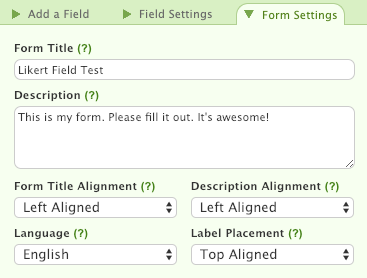
At the very top of the Form Settings pane are settings that control several general properties about your form:
Tracking

The options in the Tracking section let you enable Google Analytics tracking and choose if you’d like the form to collect respondent IP addresses.
By default, your form will collect respondent IP addresses. You can uncheck the box next to Collect IP addresses of respondents if you’d prefer to have this information excluded from entries.
When IP collection is off, you won’t capture respondent’s IP addresses and any collected when the setting was enabled will be hidden.
TIP! When IP collection is off, you can still limit one entry per IP address to prevent people from submitting multiple entries on the same computer.
Confirmation Options
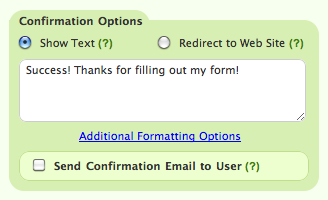
The settings in the Confirmation Options section let you customize what happens when people complete your form:
Limit Form Activity

The settings in the Limit Form Activity section let you apply limits and restrictions at the form level: