Report Builder
On this Page
FAQs
- How do I save my report?
- How can I allow users to export the data?
- How do I limit my report to a specific date?
- How do I duplicate and delete widgets?
- Why doesn’t my report show any data?
Related
Introduction
The Report Builder allows you to visualize and share the data collected by your Wufoo forms. You can access it from the Report Manager by clicking on the New Report button in the upper right hand corner or by editing an existing report by clicking on the Edit button under the report’s name.
Like the Form Builder, the Report Builder’s interface is divided into two parts: at the top, there’s a section dedicated to settings and controls and below it, a section dedicated to a dynamic preview to show you what your report will look like as you build and make changes to it.
The Controls
The report creation process in Wufoo is divided into four steps with each step having it’s own specific settings. To navigate through each step, just click on the next step’s title and it’ll slide out to show you its settings.
If you click on a widget in the preview, the Widget Settings step will automatically be selected and slide out. To save your report, click on the Save Report button at the bottom of the Report Builder.
These bottom controls float above the preview and are always accessible. It also contains buttons to access the add widgets interface in the Layout Settings and a way to hide the top controls to expand the dynamic preview.
The Preview
One thing to keep in mind about the Report Builder’s preview is that it’s a simulated presentation of what your report will look like. It does not actually pull live data from the form data as you make changes to it. This means that all the same graphs, numbers and charts will either be made of fake data to just show you what it will look like or be blank. Additionally, the Report Builder’s preview is 75% of the size of the actual report that you’re creating. This was done to make it easier to design and preview the report’s layout on smaller screen resolutions and laptops.
Report Settings
This is where you’ll give your report a name and a description. The link to your report will be based on the name entered here. If you rename the report after saving, the link to the report will change as well.
You can also set whether you want to allow your users the ability to export the data (Excel, CSV, Text) from the public report. This is good for allowing reports to show off your stuff without giving full access to your users.
Data Settings
The Data Settings are where you specify what form you want the report to be based on. The interface is designed to help you tell us what data you want by creating simple logical sentences (it’s a lot like making email rules).
If you use the default filter (“Use all entries from My Form.”) that means that all entries submitted into your form will be used to construct all visualizations in the report. If you wish to apply more filters beyond the default, the following options are available:
Selected Entries - Selecting this option opens up filtering by field. If your form has a field named “First Name,” you could then filter your dataset to something like, “First Name is equal to Bob.” The report will then contain only submissions that have a First Name of Bob.
Conditions - In the example above, the filter was set to “is equal to.” This may also be set to “Contains,” “Does not contain,” “Begins with,” and “Ends with.” The conditions for each filter are also context sensitive. For example, if you’re filtering by date, different conditions will show appropriate to that property (is before, is on, is after) in addition to a date picker. This smart processing makes filtering your data a good deal more intuitive and the options available to you a lot more accessible.
Match Type - You’ll also see a dropdown setting to match “any” or “all” filters listed in your Data Settings. If you have multiple filters in place, you can select submissions that match any of your filters, or only those that match all of your filters.
Layout Settings
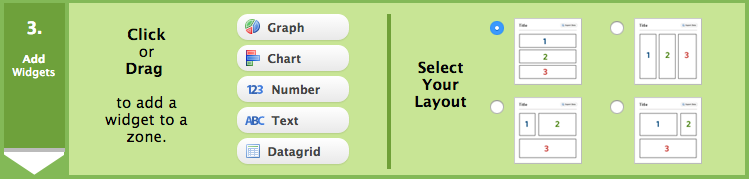
Reports in Wufoo can take advantage of multiple premade layouts based on three zones. This means you won’t have to stack all your widgets one right after each other. Instead, you can use the different zones to structure your widgets in specific groups.
To add a widget to your report, just select a zone you’d like to add the widget to and then click one of the widget buttons on the right side of the Layout Settings. Alternatively, you can also drag the button to a specific zone in the preview to add it exactly where you want.
Widget Settings
Just as a form in Wufoo is made up of different types of fields to take in input, a Wufoo report is made up of a collection of widgets that process and visualize that data. Widgets allow you to see your data and are the visual elements that make your reports stand out. There are 5 types of widgets (Graphs, Charts, Numbers, Text and Datagrid) that you can add, mix and match in your reports. Each widget type works with different field types to give you a visual summary of your data. You can add up to 10 widgets to each of your reports. Text widgets do not count against the maximum number of widgets you can add to your report.
Because each widget type is uniquely different in their presentation and function, they have their own unique set of features and settings. The following is a look at the interface settings we’ve created for each report widget in the Report Builder.
Graph Settings
The graph widgets work with all field types. You can specify the title and size of each graph widget. While these graphs do not print along with your reports, you can print each graph by right clicking on them in the report and choosing the ‘Print Chart’ option.
Chart Settings
Charts are available for all field types and are context sensitive—meaning they change how they present the data depending on the field type you’re representing. For example, if you select a field that’s a drop down, multiple choice or check box fields, the chart will present the data as a summary of the seven top responses and a count of each one. Field charts are static HTML tables that are printable from your web browser along with the rest of your report.
One setting we’ve added to charts is the ability to selectively show certain columns if it’s using a Field Chart type that’s dedicated to showing choices. The column options will allow you to choose between All Columns, Percentage Only and Count Only.
Number Settings
The Number widget allows you to run a calculation on number, price, drop down, multiple choice and checkbox fields. If you select a number or price field you can calculate a count, sum, average, minimum, maximum and most popular value chosen. You can also use Number widgets to get a total of the number of times your form has been viewed, how many submissions you have, your conversion rate and your bounce rate. Number widgets are also printable from your web browser along with the rest of your report.
Datagrid Settings
The Datagrid widget is a dynamic table that allows you to quickly browse and navigate your dataset specified in your Data Settings. The Datagrid settings are used to specify which fields and entry data you want to initially show and make available to the user in the table. Just check off the columns listed to have that data show in the Datagrid. Because the datagrid widget is a resource intensive and complicated data browsing tool, you will only be able to have one datagrid on a report at a time.
The fields to choose from in your form are separated from the entry specific information (ie. Date Created, IP Address, etc.) and payment information (ie. total, status, merchant, etc.). This is to make choosing the appropriate data to highlight a bit easier. Additionally, there’s a dropdown setting that allows you to specify which column to sort your datagrid by ahead of time and whether you want it sorted in ascending or descending order.
The Datagrid Settings also have options for showing the number of entries to show in the grid per page and whether you’d like to Allow User to View Columns Not Checked. This will allow your users to view other fields in the datagrid that you haven’t checked to be initially shown by the fields you’ve checked off above it. This will provide additional flexibility to your users viewing the reports without having to clutter the datagrid with every column on load. However, if there’s certain data from your form you don’t want to share, leave this checked off to keep only the columns you’ve specified above to show in your report.
Text Settings
The Text widget allows you to easily add static text to your reports to help explain your data to your users. As you can see here, you can supplement the formating of this text with standard HTML. You can add an unlimited number of text widgets to your report.
How do I save my report?
To save your report, click on the Save Report button at the bottom of the Report Builder.
How can I allow users to export the data?
You can also set whether you want to allow your users the ability to export the data (Excel, CSV, Text) from the public report. This is good for allowing reports to show off your stuff without giving full access to your users.
How do I limit my report to a specific time period?
The Data Settings are where you specify what form you want the report to base all its data processing from. Change the first dropdown to use selected entries and then change the first first filter’s dropdown to filter by the Date Created attribute. You can then use the date picker icon to quickly select a date. Add another condition by clicking on the green plus (+) icon.
How do I duplicate and delete widgets?
To duplicate or delete a widget, click on the widget in the preview and and the click on the plus (+) button to duplicate the widget and the minus (-) button to delete it.
Why doesn’t my report show any data?
Reports have no widgets by default. It is possible to create a blank report with no widgets. To view your data simply click or drag one of the widgets onto your report from the Layout Settings step.